




- Published on: 2026-11-25 12:52:00
How to Trade on the MT5 Mobile App
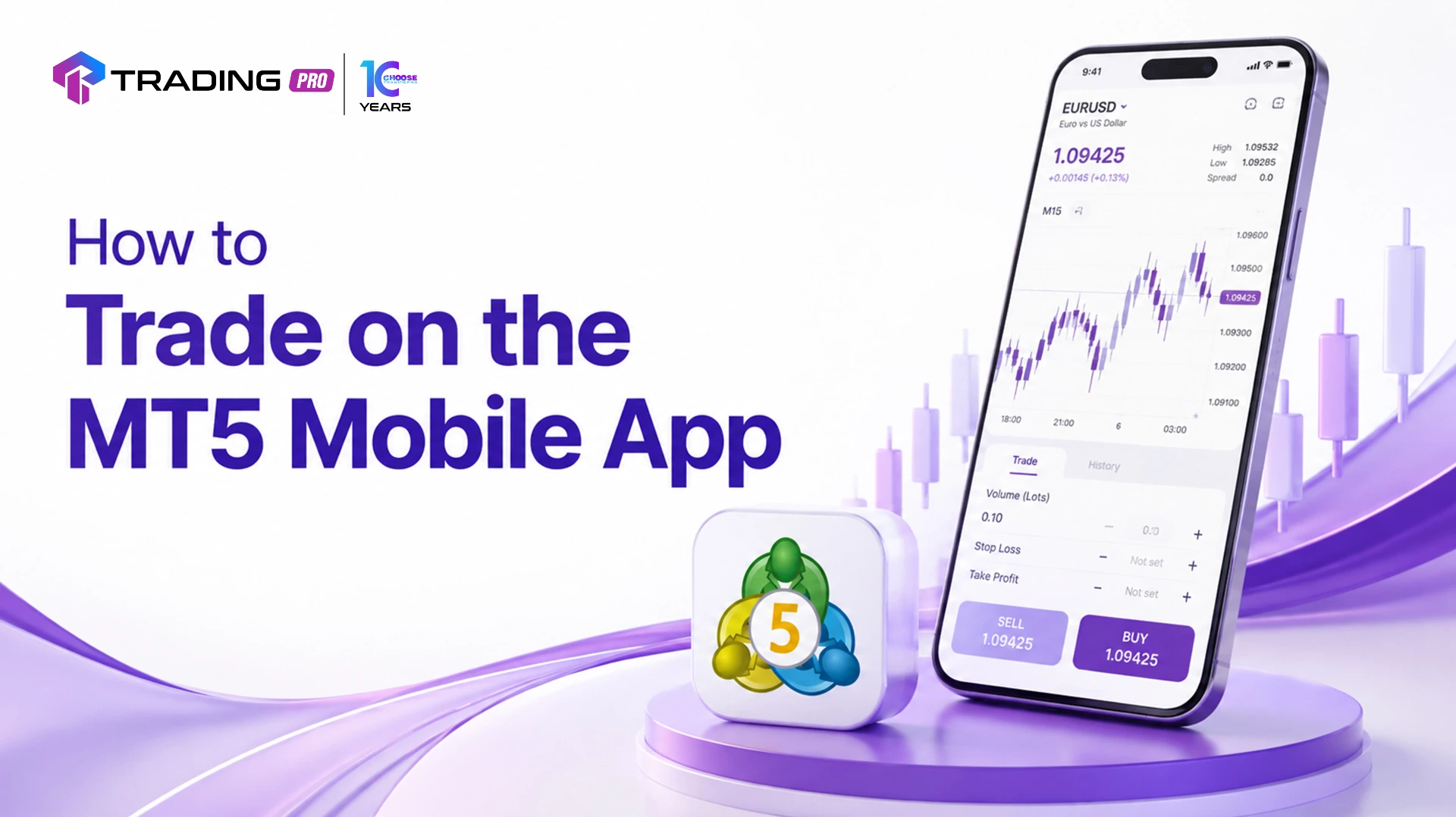
The MT5 mobile app isn't a stripped-down version of the desktop platform. It's a fully functional trading terminal designed to let you place orders, manage open positions, and monitor your account with the same core capabilities you'd expect at your desk, just optimized for a smaller screen. Once MT5 is installed and you're logged in to your account, learning how to actually trade through the app is the next essential step.
This guide covers how to place market and pending orders, manage open positions, and set stop loss and take profit levels directly from the MT5 mobile app.
Getting Familiar With the Mobile App Layout
Before placing your first trade, it helps to understand the app's main navigation tabs, typically found along the bottom of the screen:
- Quotes: Displays your watchlist of instruments with live bid/ask prices, similar to the Market Watch window on desktop.
- Charts: Shows price charts for your selected instruments, with tools for technical analysis and drawing objects.
- Trade: Displays your open positions, pending orders, and key account metrics like balance and equity.
- History: Shows your closed trades and account transaction history.
- Messages: Displays notifications and messages from your broker.
- Settings: Allows you to adjust app preferences, notifications, and account details.
Step-by-Step: Placing a Market Order on the Mobile App
Step 1: Go to the Quotes Tab
Tap Quotes at the bottom of the screen to view your watchlist of instruments.
Step 2: Select Your Instrument
Tap the symbol you want to trade. This will bring up a quick view showing the current bid and ask price.
Step 3: Open the Order Screen
Tap Trade on this quick view, or tap and hold the symbol for additional options, depending on your app version.
Step 4: Set Your Volume
Adjust the lot size using the plus and minus buttons, or tap directly on the volume figure to type a specific value.
Step 5: Add Stop Loss and Take Profit (Optional but Recommended)
Scroll down within the order screen to find the Stop Loss and Take Profit fields, where you can set your levels either by price or by a distance in points.
Step 6: Execute the Trade
Tap Buy or Sell depending on your intended direction. Your order executes immediately, and the new position will appear under the Trade tab.
Step-by-Step: Placing a Pending Order on the Mobile App
Step 1: Follow Steps 1-3 Above to Reach the Order Screen
Step 2: Switch Order Type to "Pending Order"
Tap the order type field near the top of the order screen and switch from "Market Execution" to "Pending Order."
Step 3: Choose Your Specific Pending Order Type
Select from Buy Limit, Sell Limit, Buy Stop, or Sell Stop, depending on your trading plan.
Step 4: Set Your Trigger Price
Enter the exact price at which you want the order to activate.
Step 5: Set Volume, Stop Loss, Take Profit, and Expiry
Configure these fields the same way as with a market order, plus set an optional expiry date if your setup is only valid for a limited time window.
Step 6: Place the Order
Tap Place to submit. Your pending order will appear under the Trade tab until it triggers or is manually cancelled.
Managing Open Positions From the Mobile App
Once you have active trades, the Trade tab becomes your primary management screen:
- View position details: Tap any open position to see its entry price, current profit/loss, volume, and set stop loss/take profit levels.
- Modify stop loss or take profit: From the position detail screen, tap Modify to adjust these levels without closing the trade.
- Partially close a position: Some app versions allow you to reduce your position size directly from the detail screen by adjusting the close volume before confirming.
- Close a position: Tap Close to exit the position entirely at the current market price.
Setting Alerts and Notifications for Active Trading
The mobile app supports price alerts, which can be useful when you're not actively watching the charts:
- Open a chart for your desired instrument.
- Tap and hold on the chart at your desired price level, or access the alert settings through the app menu.
- Set your trigger price and choose whether you'd like a push notification, email, or both.
- Save the alert.
You'll receive a notification once the price reaches your specified level, allowing you to act without constantly monitoring the screen.
Tips for Trading Effectively on Mobile
- Double-check volume before executing: Smaller screens make it easier to accidentally enter the wrong lot size, so always confirm before tapping Buy or Sell.
- Use landscape mode for chart analysis: Rotating your device to landscape gives you a wider view of price action, useful for spotting patterns or drawing trendlines accurately.
- Enable biometric login: This speeds up access when you need to check or manage a position quickly.
- Keep push notifications enabled: This ensures you're alerted to filled orders, triggered alerts, and important account updates even when the app isn't open.
- Avoid trading on unstable connections: Placing or modifying orders during a weak or intermittent mobile connection increases the risk of execution delays or failed requests.
Common Mistakes When Trading on Mobile
- Rushing order entry: The convenience of mobile trading can lead to skipping careful review of volume, stop loss, and take profit before execution.
- Forgetting to set stop loss on mobile trades: It's easy to tap Buy or Sell quickly without scrolling down to configure risk management fields.
- Trading on unreliable networks: Weak signal areas can cause delays between your action and actual execution, particularly risky during fast-moving markets.
- Overlooking notification settings: Missing key alerts because push notifications were disabled can result in missed opportunities or delayed reactions to triggered orders.
Final Thoughts
The MT5 mobile app puts full trading functionality in your pocket, from placing market and pending orders to managing open positions and setting price alerts. While the smaller screen requires a bit more care during order entry, the core mechanics remain consistent with the desktop platform, meaning your existing MT5 knowledge transfers directly.
Open the MT5 app on your device now and practice placing a trade on your TradingPRO account, ideally starting on a demo account if you're still building confidence with the mobile layout. Once comfortable, mobile trading becomes a genuinely powerful extension of your overall trading routine.


