




- Published on: 2026-10-09 11:48:00
How to Download and Set Up MT4
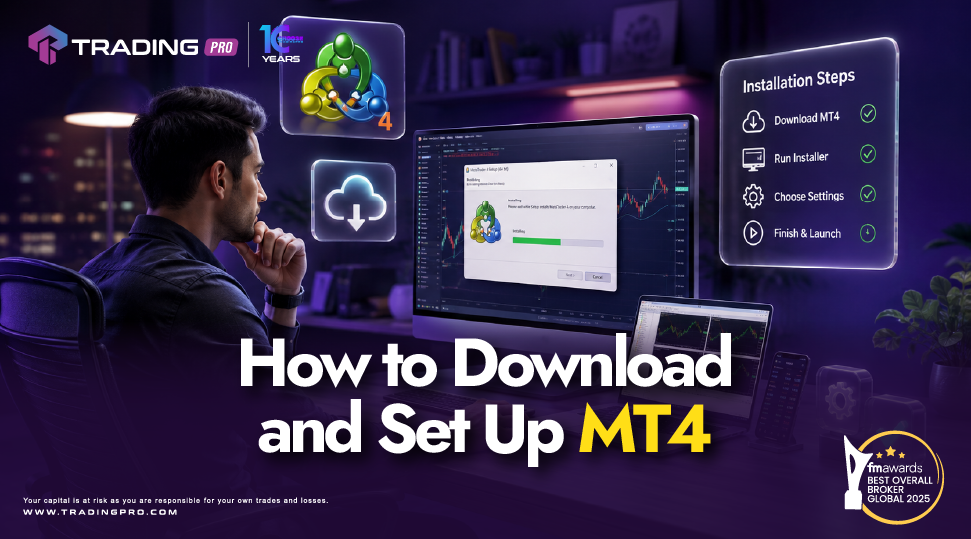
Setting up your trading software properly is the first practical step toward navigating global financial markets. MetaTrader 4, widely known as MT4, remains the most trusted forex trading platform globally due to its reliability, low system requirements, and clean operational interface.
While analyzing charts and executing trades comes later, knowing how to acquire, install, and configure your software ensures a smooth, secure trading environment. In this step by step mt4 setup guide, you will learn how to download the software, install it across different operating systems, log into your trading account, and configure your initial workspace using TradingPRO.
Step 1: Choosing a Secure Source to Download MT4
Before starting the download, it is crucial to ensure you are getting the software setup file directly from an authorized financial service provider. Downloading setup files from unverified third party software repositories can expose your computer to security vulnerabilities or outdated software versions.
The safest method is downloading directly through your registered broker. Licensed brokers like TradingPRO provide verified, direct download links for the MT4 trading platform across multiple device platforms:
- Desktop Version: Dedicated installer files (.exe for Windows, .pkg or DMG for macOS) optimized for full chart analysis.
- Mobile Applications: Direct access links or official store redirects for iOS and Android devices.
- WebTrader: Browser based access that requires no installation while retaining core charting features.
Step 2: How to Download and Install MT4 on PC and Mac
Installing MT4 takes only a few minutes. Here is the straightforward process for desktop computers:
Installing on Windows
- Visit the official TradingPRO website and navigate to the platforms section.
- Click the Download MT4 for Windows link to save the installation file to your computer.
- Open your downloads folder and double click the setup file.
- When the User Account Control prompt appears, click Yes to run the setup wizard.
- Review the license agreement, click Next, and wait 1 to 2 minutes while the installer downloads core program files.
- Click Finish to launch MetaTrader 4 automatically.
Installing on macOS
- Download the macOS setup package from TradingPRO.
- Open the downloaded file and drag the MetaTrader 4 icon into your Applications folder.
- Open your Applications folder and launch MT4. If macOS displays a security prompt regarding unverified developers, navigate to System Settings > Privacy & Security and allow the application to open.
Step 3: Connecting MT4 to Your Trading Account
Once installed, MT4 opens with a server selection prompt. Understanding how does mt4 work during account login ensures your client terminal connects securely to your broker's execution engine.
1. Selecting the Correct Broker Server
When the software launches, a window titled Open an Account displays a list of trade servers:
- Demo Server: Select this if you are testing strategies or practicing with virtual funds (e.g., TradingPRO-Demo).
- Live Server: Select this if you are trading with real capital (e.g., TradingPRO-Live).
If your broker server is not listed automatically, click Add new broker, type TradingPRO, and click Scan. Select your assigned server and click Next.
2. Entering Your Login Credentials
- Select Existing trade account.
- Enter your account login number (ID) and master password sent to your email by TradingPRO.
- Check the Save password box if you are using a secure personal computer.
- Click Finish.
A successful connection is confirmed by a green connection bar in the bottom right corner of the terminal showing incoming and outgoing network speed, alongside an audio chime.
Step 4: Initial Workspace Setup for Beginners
When you log in for the first time, the default MT4 screen can look busy with multiple open charts and dark backgrounds. Configuring a clean workspace makes market monitoring much easier.
Clean Up Your Workspace
- Close Unnecessary Charts: MT4 usually opens with four default charts. Click the small "X" on three of them and maximize one main chart window (e.g., EUR/USD).
- Customize Chart Colors: Right click anywhere on the active chart, select Properties (or press F8), and choose a readable color scheme such as Black on White or custom green and red candlesticks.
- Enable One Click Trading: Right click the chart and select One Click Trading (or press Alt + T). This adds fast Buy/Sell buttons directly to the top left of your chart window for quick order placement.
Step 5: Setting Up MT4 on Mobile Devices
For traders who need to monitor positions on the go, setting up MT4 on a smartphone or tablet is equally simple:
- Open the Apple App Store or Google Play Store.
- Search for MetaTrader 4 and tap install.
- Open the app, go to Settings (iOS) or the main menu (Android), and select Manage Accounts.
- Tap the "+" icon and select Log in to an existing account.
- Type TradingPRO in the search bar, select your assigned server (Demo or Live), and enter your login details.
Mobile setups sync directly with your desktop terminal, allowing you to monitor positions or modify orders anywhere.
Why Choose TradingPRO as Your Best MT4 Broker?
Having a smooth setup experience depends heavily on the technical support and server reliability provided by your financial service partner. TradingPRO stands out as a best MT4 broker choice by offering robust infrastructure optimized for first time users.
Key benefits of starting your setup with TradingPRO include:
- Pre Configured Installers: Downloads from TradingPRO come pre populated with official broker servers, eliminating manual server searching during account login.
- Ultra Low Latency: High speed trade servers ensure your MT4 terminal communicates quickly with market liquidity pools.
- Beginner Friendly Setup Support: If you encounter installation errors or login issues, TradingPRO offers dedicated customer support to walk you through setup steps.
- Flexible Trading Environments: Access both practice demo accounts and low deposit live account types tailored for forex trading for beginners.
Whether you are learning how to use mt4 for chart analysis or practicing how to trade forex on MT4 using a virtual balance, TradingPRO provides a stable foundation.
Frequently Asked Questions
Why does MT4 say "Waiting for update" or "No connection"?
A "No connection" or "Waiting for update" message means your client terminal cannot reach the broker server. Verify that your internet connection is active, ensure you selected the correct server name (Demo vs Live), and check that your account login number and password are entered accurately.
Can I log into the same MT4 account on my computer and phone at the same time?
Yes. MT4 supports multi device sessions. You can remain logged into your TradingPRO account on your desktop terminal while simultaneously monitoring trades through the MT4 mobile app.
Is downloading and setting up MT4 free?
Yes. Downloading and installing the MT4 software from TradingPRO is completely free, with zero subscription fees for using the platform.
Conclusion: Complete Your Setup and Start Trading
Downloading and configuring MetaTrader 4 is a simple process that sets the stage for your entire market journey. By obtaining verified setup files, connecting to secure servers, and tailoring your chart layout, you build a clean command center for analyzing currency movements.
Ready to complete your installation? Visit TradingPRO today to download the official MT4 installer, launch your account, and explore global markets with a trusted broker partner.


